
Chapter 7: SVG line
What does line actually do?
It draws a single straight line segment between two points.
No curves, no filling inside — just a stroke (the visible part) connecting point A to point B.
The 4 must-know attributes (all required in practice)
| Attribute | Meaning | Typical values | Default | Notes |
|---|---|---|---|---|
| x1 | Starting point — x coordinate | number, % | 0 | Horizontal start position |
| y1 | Starting point — y coordinate | number, % | 0 | Vertical start position |
| x2 | Ending point — x coordinate | number, % | 0 | Horizontal end position |
| y2 | Ending point — y coordinate | number, % | 0 | Vertical end position |
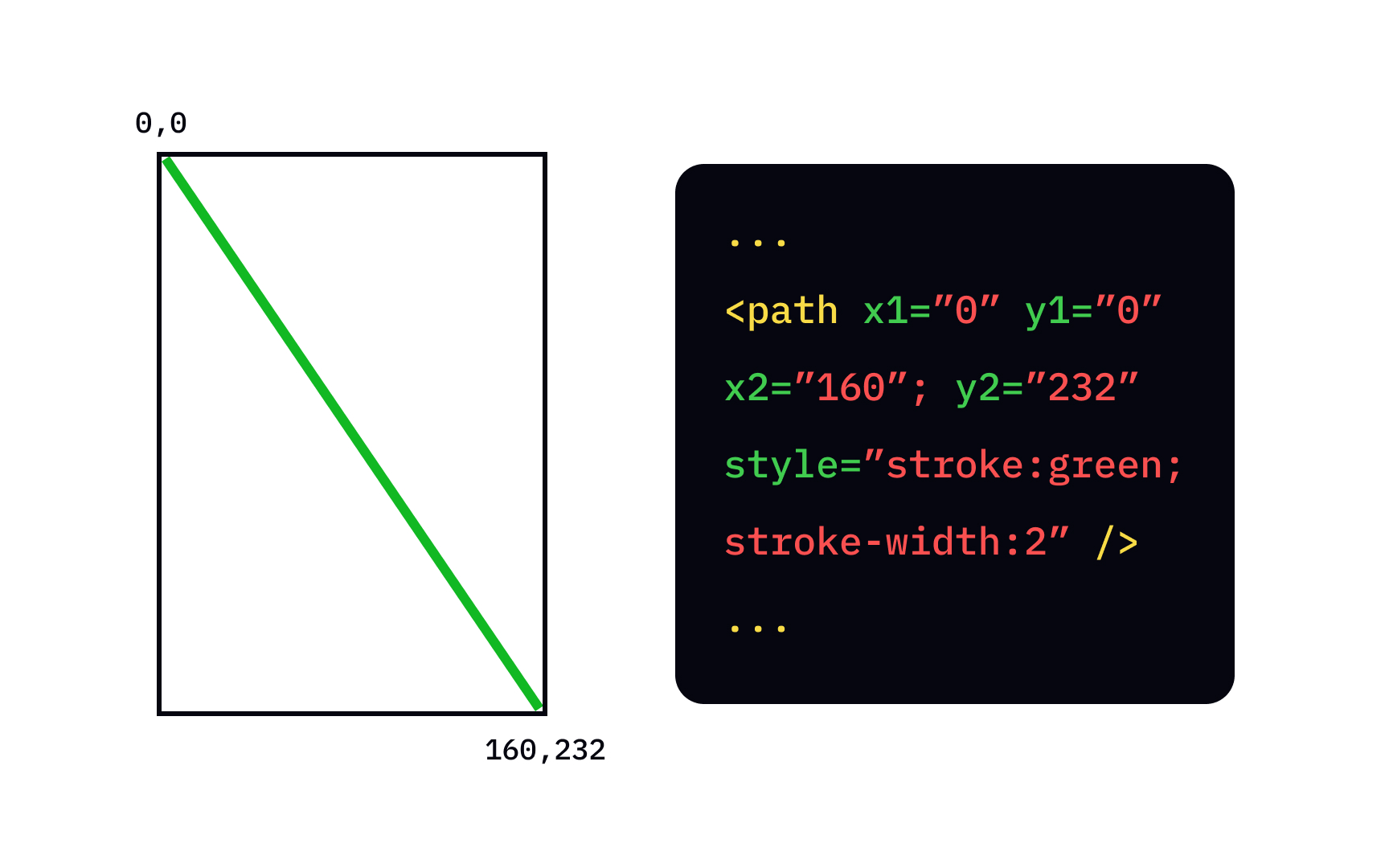
Remember SVG coordinates forever:
- (0,0) = top-left corner
- x increases → right
- y increases → down
Here are some clear visual explanations of how the coordinate system works with a line:

observablehq.com
app.uxcel.com
Example 1 – Simplest horizontal line (like a divider)
HTML
|
0 1 2 3 4 5 6 7 8 9 10 11 12 13 14 15 |
<svg width="500" height="200" style="border:1px solid #ddd; background:#f8f9fa;"> <line x1="40" y1="100" x2="460" y2="100" stroke="#333" stroke-width="6" /> </svg> |
Result: Thick dark horizontal line across the middle.
Example 2 – Diagonal line (very common)
HTML
|
0 1 2 3 4 5 6 7 8 9 10 11 12 13 14 15 |
<svg width="400" height="300"> <line x1="50" y1="50" x2="350" y2="250" stroke="#4CAF50" stroke-width="8" /> </svg> |
This goes from near top-left → bottom-right.
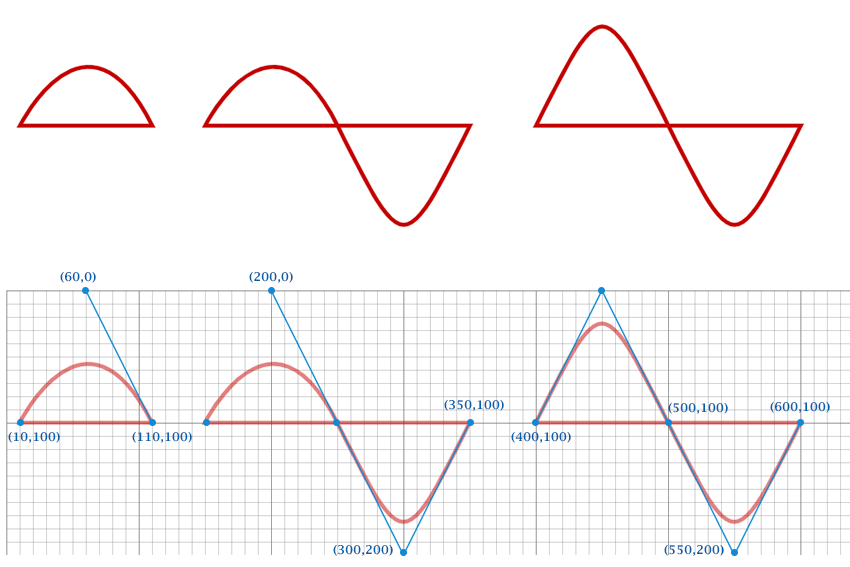
Visual example of a diagonal line with coordinates labeled:
medium.com
All you need to know about SVG Shapes | by Anish Antony | Javarevisited | Medium
Example 3 – Vertical line + different thicknesses & colors
HTML
|
0 1 2 3 4 5 6 7 8 9 10 11 12 |
<svg width="400" height="300"> <line x1="100" y1="40" x2="100" y2="260" stroke="#2196F3" stroke-width="4"/> <line x1="180" y1="40" x2="180" y2="260" stroke="#E91E63" stroke-width="8"/> <line x1="260" y1="40" x2="260" y2="260" stroke="#FF9800" stroke-width="12"/> </svg> |
Example 4 – Dashed & dotted lines (super useful for charts, wireframes)
HTML
|
0 1 2 3 4 5 6 7 8 9 10 11 12 13 14 15 16 17 18 19 20 21 22 23 |
<svg width="500" height="220"> <!-- Solid --> <line x1="40" y1="60" x2="460" y2="60" stroke="#333" stroke-width="5"/> <!-- Dashed --> <line x1="40" y1="110" x2="460" y2="110" stroke="#F44336" stroke-width="5" stroke-dasharray="10 5" /> <!-- Dotted (small dashes) --> <line x1="40" y1="160" x2="460" y2="160" stroke="#673AB7" stroke-width="5" stroke-dasharray="2 8" /> <!-- Very long dashes --> <line x1="40" y1="210" x2="460" y2="210" stroke="#009688" stroke-width="6" stroke-dasharray="20 10" /> </svg> |
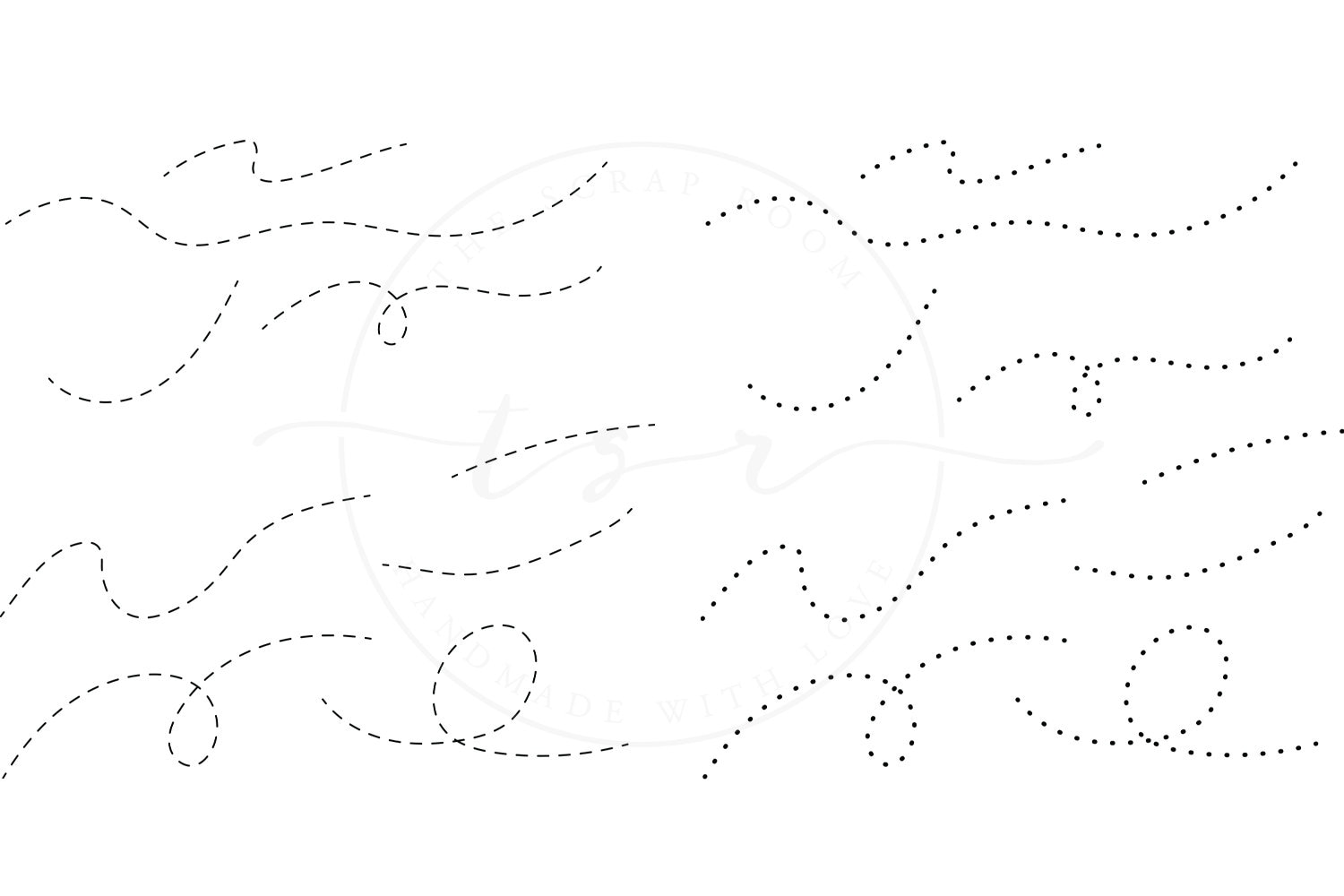
Here are some dashed/dotted line style examples (not exactly SVG but shows the idea clearly):
etsy.com
dreamstime.com
Example 5 – Arrows using <line> + <marker> (very common pattern)
HTML
|
0 1 2 3 4 5 6 7 8 9 10 11 12 13 14 15 16 17 18 19 20 21 22 23 |
<svg width="400" height="200"> <defs> <marker id="arrow" markerWidth="10" markerHeight="10" refX="8" refY="3" orient="auto"> <path d="M0,0 L0,6 L9,3 z" fill="#FF5722" /> </marker> </defs> <line x1="60" y1="100" x2="340" y2="100" stroke="#FF5722" stroke-width="5" marker-end="url(#arrow)" /> <line x1="200" y1="40" x2="200" y2="160" stroke="#2196F3" stroke-width="5" marker-end="url(#arrow)" marker-start="url(#arrow)" /> </svg> |
Quick comparison: When to use <line> vs others
| Goal | Best choice | Why? |
|---|---|---|
| Single straight line | <line> | Simplest & clearest |
| Connected lines (polyline) | <polyline> | One element, many points |
| Complex path with curves | <path> | Most powerful (d attribute) |
| Arrow / directed line | <line> + marker | Easy arrowheads |
| Grid / axis lines | Multiple <line> | Or <path> for dashed grid |
Common beginner mistakes with <line>
- Forgetting all four coordinates → line invisible
- Setting x1 = x2 and y1 = y2 → zero-length line (invisible)
- No stroke color or stroke-width → nothing visible (default stroke = none)
- Thinking it can be filled → no, <line> has no fill (use stroke only)
Mini practice tasks for you
- Draw a big red X across the whole SVG using two<line> elements
- Create a simple coordinate cross (horizontal + vertical line meeting in center) with arrows on both ends
- Make a dashed blue border around the SVG using four <line> elements
Paste your code here if you want feedback — I’ll check it like we’re debugging together 😄
Any part still not 100% clear? Just tell me which example or concept — we’ll redraw it until it clicks perfectly! 🚀




